Read
You were dead through the trespasses and sins in which you once lived, following the course of this world, following the ruler of the power of the air, the spirit that is now at work among those who are disobedient. All of us once lived among them in the passions of our flesh, following the desires of flesh and senses, and we were by nature children of wrath, like everyone else. But God, who is rich in mercy, out of the great love with which he loved us even when we were dead through our trespasses, made us alive together with Christ—by grace you have been saved— and raised us up with him and seated us with him in the heavenly places in Christ Jesus, so that in the ages to come he might show the immeasurable riches of his grace in kindness toward us in Christ Jesus. For by grace you have been saved through faith, and this is not your own doing; it is the gift of God— not the result of works, so that no one may boast. For we are what he has made us, created in Christ Jesus for good works, which God prepared beforehand to be our way of life.
Ephesians 2:1-10
Reflect
Remember that rock you have been carrying with you for most of this Journey? Hold it again in your hand.
Let the rock in your hand symbolize every sinful attitude and action
Let the rock in your hand symbolize all that you wish you weren’t
Let the rock in your hand symbolize the shadow within
Let the rock in your hand symbolize the brokenness you have experienced
Let the rock in your hand symbolize the brokenness you have caused
Watch (3 minutes)
Action
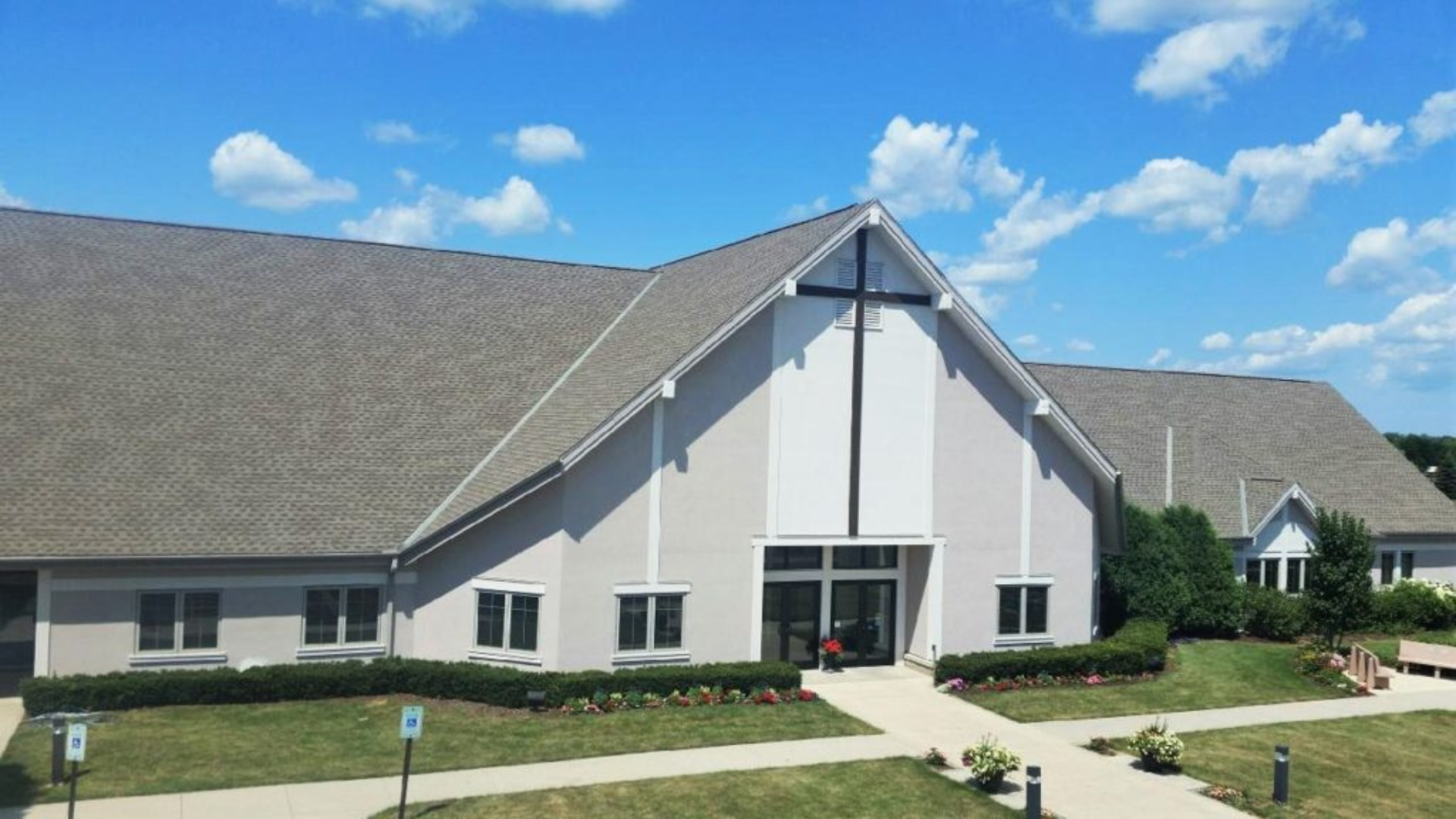
Find the community of faith where you can hear the Good News, be it Our Savior’s or the congregation you find yourself near. Bring your rock to this Holy Place on Good Friday or Easter Sunday and leave it and all the Sin, Guilt and Shame that holds you back at the foot of the Cross.